
Anúncios
The Amazon Alexa app transforms your smartphone into a powerful control center for your smart home, music, routines, and voice assistant features, all at your fingertips.


Anúncios
Whether you own an Echo device or simply want to access Alexa’s capabilities directly from your mobile device, the Alexa app is your gateway to a smarter, more connected lifestyle. From setting up new devices to customizing skills and routines, this app puts complete control in the palm of your hand.
In this comprehensive guide, we’ll walk you through everything you need to know about using the Alexa app on your smartphone. You’ll discover how to download, set up, and master every feature available, making your daily interactions with Alexa seamless and efficient. 📱
Getting Started: Downloading and Installing the Alexa App
Anúncios
Before you can enjoy the full range of Alexa’s features, you’ll need to download the official Amazon Alexa app on your smartphone. The app is free and available for both Android and iOS devices, ensuring compatibility with virtually any modern smartphone.
For Android users, head to the Google Play Store and search for “Amazon Alexa.” Look for the app developed by Amazon Mobile LLC, which typically features the blue circular Alexa icon. Tap the install button, and the app will automatically download and install on your device within minutes, depending on your internet connection speed.
iPhone and iPad users can find the same app in the Apple App Store. Simply search for “Amazon Alexa” and download the official application. The installation process is straightforward and requires minimal storage space—usually less than 200MB—making it accessible even for devices with limited storage capacity.
Once installed, locate the Alexa app icon on your home screen or app drawer. The distinctive blue icon with a white speech bubble design is easy to spot. Tap to open the application and begin your setup journey. ✨
Creating Your Amazon Account and Signing In
To use the Alexa app, you’ll need an active Amazon account. If you already shop on Amazon, you can use those same credentials to sign in. For new users, the app provides a simple registration process directly within the interface.
Tap “Create a new Amazon account” if you don’t have one yet. You’ll need to provide your name, email address or mobile phone number, and create a secure password. Amazon will send a verification code to confirm your identity before proceeding.
After verification, you’ll be prompted to add additional information such as your country and language preferences. These settings help Alexa understand your commands better and provide localized content and services tailored to your region.
Security is paramount, so consider enabling two-factor authentication in your Amazon account settings. This extra layer of protection ensures that even if someone obtains your password, they won’t be able to access your Alexa app without the secondary verification code sent to your phone or email. 🔐
Navigating the Alexa App Interface Like a Pro
Once you’re logged in, you’ll encounter the Alexa app’s main interface, which is designed with user-friendliness in mind. The home screen displays several key sections that provide quick access to various features and functions.
At the bottom of the screen, you’ll find the navigation bar with five main tabs: Home, Communicate, Play, Devices, and More. Each tab serves a specific purpose and contains tools to help you interact with Alexa and manage your smart ecosystem.
The Home tab functions as your dashboard, displaying recently played music, news highlights, reminders, and suggested skills you might enjoy. It’s essentially your personalized command center that adapts to your usage patterns over time.
The Communicate tab enables messaging and calling features, allowing you to contact other Alexa users or make announcements to Echo devices in your home. This feature transforms your smartphone into a home intercom system with just a few taps.
Under the Play tab, you’ll discover music streaming options, audiobooks, podcasts, and radio stations. Whether you use Amazon Music, Spotify, Apple Music, or other supported services, you can control playback directly from this section. 🎵

Setting Up Your Echo Device Through the App
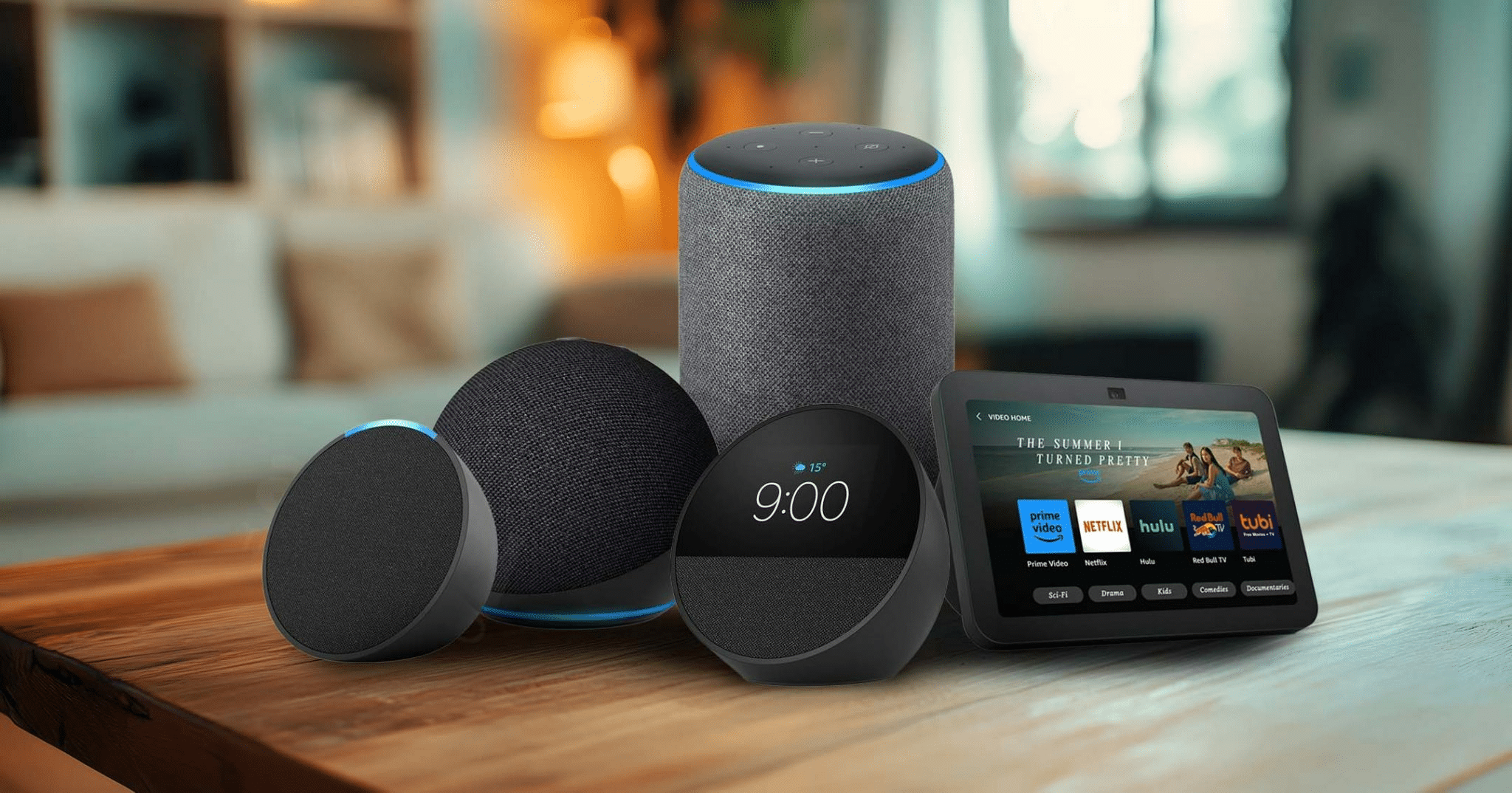
If you own an Echo speaker, Echo Show, or any other Alexa-enabled device, the app is essential for the initial setup process. The configuration wizard guides you through each step, making device installation remarkably simple even for technology newcomers.
Navigate to the Devices tab and tap the plus (+) icon in the upper right corner. Select “Add Device” from the menu, then choose the type of device you’re setting up from the list provided. The app supports dozens of device categories, from Echo speakers to smart lights, thermostats, and security cameras.
For Echo devices, select “Amazon Echo” and follow the on-screen instructions. You’ll need to plug in your device and wait for the light ring to turn orange, indicating it’s in setup mode. The app will then search for your Echo and establish a connection.
Next, you’ll connect your Echo to your Wi-Fi network. Select your network from the list, enter your password, and wait while the device connects. Once connected, you can customize your device name, location, and other preferences to help Alexa understand context better when you issue commands. 🏠
Exploring and Enabling Alexa Skills
One of the most powerful aspects of the Alexa ecosystem is the vast library of skills—essentially apps that extend Alexa’s capabilities. From meditation guides to recipe assistants, trivia games to smart home integrations, there’s a skill for almost every interest and need.
To browse available skills, tap the More tab at the bottom of the screen, then select “Skills & Games.” You’ll find curated collections, trending skills, and category-based browsing options to help you discover new functionalities.
When you find a skill that interests you, tap on it to read the description, view ratings and reviews, and see what permissions it requires. To add the skill to your Alexa, simply tap “Enable to Use.” Some skills may require you to link an external account, such as your Spotify or smart home device manufacturer account.
Popular skills include meditation apps like Headspace, news briefings from major outlets, smart home controls for brands like Philips Hue and Ring, and entertainment options like Jeopardy! and Ambient Sounds. Experiment with different skills to personalize your Alexa experience according to your lifestyle and preferences. 🎮
Creating Powerful Routines to Automate Your Day
Routines are sequences of actions that Alexa performs automatically based on triggers you define. They’re incredibly useful for automating repetitive tasks and creating seamless smart home experiences that adapt to your daily schedule.
To create a routine, navigate to the More tab and select “Routines.” Tap the plus (+) icon to begin building a new routine. You’ll need to set up two components: a trigger (when) and actions (what happens).
Triggers can be voice commands, specific times of day, alarms being dismissed, device arrivals or departures based on your phone’s location, or even when you stop an alarm. For example, you might create a “Good Morning” routine triggered when you dismiss your alarm.
Actions are the tasks Alexa performs when triggered. These can include turning on lights, adjusting thermostats, playing news briefings, starting your coffee maker, reading your calendar, or announcing the weather forecast. You can chain multiple actions together to create comprehensive automated sequences.
A practical example: Create a “Leaving Home” routine that activates when your phone leaves your home location. Set actions to turn off all lights, lock smart locks, adjust the thermostat to away mode, and send you a confirmation notification. This level of automation transforms how you interact with your living space. ⚡
Using Alexa Hands-Free on Your Phone
Did you know you can activate Alexa directly from your smartphone without opening the app? This hands-free functionality makes your phone function like an Echo device, allowing you to issue voice commands even when your screen is locked.
To enable hands-free mode, open the Alexa app and tap the More tab. Select “Settings,” then “Alexa on this Phone.” Toggle on the “Enable Alexa Hands Free” option. You may need to grant the app additional permissions to access your microphone and run in the background.
Once enabled, you can say “Alexa” followed by your command, and your phone will respond just like an Echo device would. This feature is particularly useful when driving, cooking, or performing other tasks where touching your phone isn’t convenient or safe.
Keep in mind that hands-free Alexa may impact battery life since the app needs to continuously listen for the wake word. You can customize settings to balance functionality with battery conservation based on your priorities. 🔋
Managing Your Smart Home Devices
The Devices tab serves as mission control for your entire smart home ecosystem. Here you can view, organize, and control all connected devices from a single, unified interface.
Devices are organized into categories like Lights, Plugs, Thermostats, Locks, Cameras, and more. You can also create custom groups to control multiple devices simultaneously. For instance, create a “Living Room” group containing your lights, TV, and smart plug to control them all with a single voice command or tap.
To add a new smart home device, tap the plus (+) icon and select your device type or brand. The app supports thousands of compatible products through direct integrations or skills. Follow the manufacturer’s specific instructions for linking their devices to your Alexa account.
Once connected, you can control devices manually through the app, incorporate them into routines, or issue voice commands. The app also displays device status, allowing you to quickly check if lights are on, doors are locked, or thermostats are at the desired temperature without leaving your couch. 🌡️
Communicating Through Drop In, Announcements, and Calling
The Communicate tab unlocks powerful features that turn your Alexa devices into a comprehensive communication system for your home and beyond.
Drop In allows you to instantly connect to your Echo devices or other Alexa users who’ve granted you permission. It’s perfect for checking in on family members in different rooms or elderly relatives in their own homes. To use Drop In, tap the Communicate tab, select Drop In, and choose the device or contact.
Announcements broadcast messages to all Echo devices in your home simultaneously. Simply tap the Announce button, record your message, and it plays on every device. This is invaluable for dinner calls, departure reminders, or quick household updates without yelling across the house.
Alexa also supports voice and video calling to other Alexa users completely free. Add contacts through the app, then initiate calls directly from your smartphone or by voice command to your Echo devices. Video calls work on Echo Show devices and the Alexa app, creating a seamless family communication network. 📞
Customizing Alexa Settings for Optimal Performance
The Settings menu, found under the More tab, offers extensive customization options that allow you to tailor Alexa’s behavior to your preferences and needs.
In Account Settings, you can manage your Amazon Household, which allows multiple people to share content and devices while maintaining separate profiles and preferences. This ensures personalized experiences for each family member.
Voice Responses settings let you adjust how Alexa speaks, including enabling Brief Mode for shorter responses, adjusting speech rate, or switching to whisper mode for quieter interactions during nighttime hours.
Privacy settings are particularly important. Here you can review and delete voice recordings, manage what data Amazon collects, and control how your information is used to improve Alexa’s performance. You can also disable purchasing by voice or require a confirmation code for added security.
Music & Podcasts settings allow you to set default music services, link streaming accounts, and manage podcast subscriptions. This customization ensures Alexa plays from your preferred service without needing to specify it every time you request music. 🎧
Troubleshooting Common Alexa App Issues
Even with its user-friendly design, you may occasionally encounter issues with the Alexa app. Understanding common problems and their solutions can save you frustration and restore functionality quickly.
If the app won’t connect to your Echo device, first ensure both your phone and Echo are on the same Wi-Fi network. Restart both devices and check for app updates in your device’s app store. Outdated software frequently causes connectivity issues.
When voice commands aren’t recognized properly, verify that your microphone permissions are enabled for the app. Navigate to your phone’s settings, find the Alexa app, and ensure microphone access is granted. Also check that you’re speaking clearly and within reasonable proximity to your device.
For performance issues like slow loading or crashes, clear the app’s cache through your phone’s settings. This removes temporary files that may be causing conflicts. If problems persist, uninstalling and reinstalling the app often resolves stubborn technical glitches.
If smart home devices aren’t responding, check that their companion skills are still enabled and properly linked. Sometimes account connections expire and need to be reauthorized through the Skills section of the app. 🔧
Maximizing Privacy and Security Settings
With any voice-activated technology, privacy concerns are natural and valid. The Alexa app provides robust controls that put you in charge of your data and how it’s used.
Voice recording management is accessible through Settings > Alexa Privacy > Review Voice History. Here you can listen to past recordings, delete individual entries, or set up automatic deletion after a specified period—either three months or eighteen months.
You can also enable deletion by voice command by saying “Alexa, delete what I just said” or “Alexa, delete everything I said today.” This provides immediate control without needing to open the app.
Manage skill permissions regularly by reviewing which skills have access to your location, contact information, or other personal data. Revoke permissions for skills you no longer use to minimize your data footprint.
Consider disabling the use of voice recordings for improving Alexa’s services if you prefer maximum privacy. While this may slightly impact personalization, it ensures your voice data isn’t analyzed by human reviewers or used for development purposes. 🛡️
Advanced Tips for Power Users
Once you’ve mastered the basics, these advanced techniques will help you extract even more value from the Alexa app and ecosystem.
Multi-room music groups allow you to play synchronized audio across multiple Echo devices simultaneously. Create groups in the Devices tab, then request music to play on that group name for a whole-home audio experience that rivals expensive installed systems.
Location-based routines use your phone’s GPS to trigger actions automatically. Set up routines that activate when you arrive home or leave, creating a truly smart home that anticipates your needs without manual intervention.
Skill blueprints enable you to create custom Alexa skills without any coding knowledge. These templates let you build personalized experiences like family trivia games with your own questions, custom Q&A responses, or personalized compliment generators.
Integration with IFTTT (If This Then That) extends Alexa’s capabilities beyond native features. Connect Alexa triggers to thousands of web services and devices, creating powerful automations like logging your activities to spreadsheets or sending custom notifications based on Alexa interactions.
Voice profiles allow Alexa to recognize individual household members and provide personalized responses, music preferences, and shopping suggestions. Set up profiles through Settings > Your Profile & Family to enable this advanced personalization feature. 🚀
Making the Most of Music and Entertainment Features
The Alexa app excels as an entertainment hub, offering access to music, podcasts, audiobooks, and radio from numerous services all in one convenient location.
Link your preferred music streaming services through Settings > Music & Podcasts. The app supports Amazon Music, Spotify, Apple Music, Pandora, Deezer, Tidal, and many others. Once linked, you can control playback, create playlists, and queue songs directly from the app.
The Play tab provides curated playlists, trending podcasts, and recommended content based on your listening history. Explore different genres and discover new artists without leaving the app’s ecosystem.
For audiobook lovers, Alexa integrates seamlessly with Audible. Your library syncs automatically, allowing you to start listening on your Echo at home, continue in your car through Bluetooth, and finish on your phone—all without losing your place.
Multi-room audio takes entertainment to the next level. Create speaker groups and synchronize music playback across your entire home, or play different content in different rooms simultaneously for personalized experiences that suit each family member’s preferences. 🎶
Staying Updated with News and Information
Transform your Alexa app into a personalized news and information service that keeps you informed about topics that matter most to you.
Flash Briefing is your customizable news summary accessible by voice or through the app. Configure which news sources you hear first by going to Settings > Flash Briefing. Add, remove, and reorder sources to create a perfectly tailored morning briefing.
News skills from major outlets like CNN, BBC, NPR, and ESPN provide deeper dives into specific topics. Enable skills for your favorite publications to access extended content beyond standard briefings.
Set up notifications for breaking news, weather alerts, and other important updates. The app can send push notifications to your phone, ensuring you stay informed even when you’re away from your Echo devices.
Traffic and commute features help you plan your day efficiently. Provide your home and work addresses in Settings > Traffic, and Alexa will offer real-time traffic updates and suggest optimal departure times based on current road conditions. 📰
Enhancing Your Experience with Visual Features
If you own an Echo Show or use the Alexa app on a tablet, visual features significantly enhance your interaction experience.
The Home Screen on Echo Show devices can be customized through the app. Choose from clock styles, enable photo frame mode with your Amazon Photos, and select which information appears when the device is idle.
Video skills transform your Echo Show into an entertainment center. Enable skills for YouTube, Prime Video, Hulu, and other services to stream content with simple voice commands or taps on the touchscreen.
Visual ID uses facial recognition on Echo Show devices to provide personalized experiences automatically when different family members approach. This feature enhances privacy and ensures everyone receives relevant information without verbal identification.
The app also serves as a second screen for visual information when you ask Alexa questions. Recipe cards, weather forecasts, calendar events, and other visual content appear on your phone screen, complementing voice responses with helpful graphics and details. 📺
Leveraging Alexa for Productivity and Organization
Beyond entertainment and smart home control, the Alexa app functions as a powerful productivity tool that helps organize your life and streamline daily tasks.
Shopping and to-do lists sync across all your devices, making them accessible anywhere. Add items by voice, through the app, or even from your computer’s web browser. Share lists with family members for coordinated household management.
Calendar integration connects Alexa to Google Calendar, Microsoft Outlook, or Apple Calendar. Ask about upcoming appointments, add events by voice, or receive morning briefings that include your daily schedule.
Reminders ensure you never forget important tasks. Set time-based or location-based reminders that alert you when it’s time to act. Location reminders are particularly useful—get notified to buy milk when you arrive at the grocery store.
Alexa can also help with focus and productivity through skills like meditation timers, Pomodoro technique coaches, and ambient sound generators that create ideal work environments. Transform downtime into productive moments with educational skills and language learning tools. ✅
Understanding Your Alexa Voice History
Transparency about your voice interactions is essential for building trust in voice technology. The Alexa app provides complete access to your voice history and gives you full control over this data.
Access your voice history through Settings > Alexa Privacy > Review Voice History. You’ll see a chronological list of every interaction, organized by date and device. Tap any entry to hear the recording and see how Alexa interpreted your command.
This feature is useful for troubleshooting misunderstandings. If Alexa consistently misinterprets a particular command, listening to the recording helps identify pronunciation issues or background noise interference.
Delete individual recordings, entire days, or all recordings with just a few taps. For ongoing privacy, enable automatic deletion in the same menu, choosing between three-month or eighteen-month retention periods.
Understanding that you have complete control over this data empowers you to use Alexa confidently, knowing you can review and remove any interaction that concerns you at any time. 🔍
Embracing the Future with Your Alexa App
The Alexa app continues to evolve with regular updates that introduce new features, improve performance, and expand compatibility with emerging smart home devices and services.
Stay informed about new capabilities by checking the What’s New section periodically. Amazon frequently releases features that enhance existing functionality or introduce entirely new ways to interact with Alexa.
As the smart home ecosystem grows, your Alexa app becomes increasingly valuable as a unified control platform. New device categories, expanded third-party integrations, and improved AI capabilities make Alexa more intuitive and helpful with each passing year.
By mastering the Alexa app on your smartphone, you’ve unlocked a powerful tool that simplifies daily life, enhances home entertainment, improves productivity, and creates a more connected living environment. Whether you’re automating morning routines, controlling lights from bed, or staying informed about world events, the app puts incredible power directly in your pocket.
The journey from download to power user may seem complex at first, but with practice and exploration, the Alexa app becomes an indispensable part of your digital life—a personal assistant that’s always ready to help, entertain, and simplify your world. 🌟
